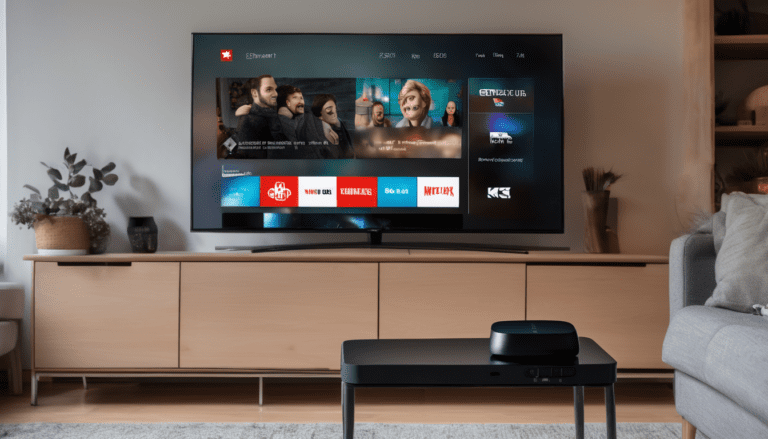
If you own a Samsung Smart TV and want to cut your cable bill, you’re in the right place. Getting IPTV on a Samsung TV in Canada is straightforward. No sideloading, no extra hardware required on most models built after 2016. Here’s everything you need to know.
Can You Get IPTV on a Samsung Smart TV in Canada?
Yes, you can. Samsung Smart TVs running Tizen OS support third-party IPTV apps available directly in the Samsung App Store. No USB sticks, no complicated workarounds. Just download the app, enter your subscription credentials, and start watching.
The apps you’ll use are the same ones that Canadian IPTV providers like Royal Stream support natively: SS IPTV, IboPlayer, and Smarters Player Lite. All three are free to download from the App Store. Your IPTV provider gives you either an m3u playlist URL or Xtream Codes login credentials, and you paste those into the app. That’s it.
If your Samsung TV is older than 2016, you’ll need a workaround like a Chromecast or a Fire TV Stick plugged into the HDMI port. But for most Canadians with a TV bought in the last eight years, the App Store route works out of the box without any fuss.
The short answer: Samsung Smart TV plus a Canadian IPTV subscription is one of the cleanest, simplest setups you can have. No extra boxes, no second remote, no complicated pairing process.
Does Your Samsung TV Support IPTV Apps?
Samsung has shipped Tizen OS on its Smart TVs since 2015, but third-party app support through the App Store became reliable and consistent starting with the 2017 model lineup. If your TV was made in 2017 or later, you’re covered.
Here’s a quick model-year guide:
- 2017 (M-Series): Full Tizen support, App Store works, IPTV apps available
- 2018 (N-Series): Full support
- 2019 (R/Q-Series): Full support
- 2020 (T/Q-Series): Full support
- 2021 (A/Q/Neo Q-Series): Full support
- 2022 (B/QN-Series): Full support
- 2023 (C/QN-Series): Full support
- 2024 (D/QN-Series): Full support
For 2016 and earlier models (K-Series and below), the App Store is more restricted. Your best option with those TVs is a streaming stick or box connected via HDMI. A full list of IPTV-compatible devices covers your options there, including Chromecast, Fire Stick, and Android TV boxes.
One thing to check before you start: make sure your TV is signed into a Samsung account and that your region is set to Canada. Some apps don’t appear in the store at all if the region is missing or incorrectly set to another country. This catches a lot of people off guard.
You can verify and change your region by going to Settings, General, System Manager, and then Country. Once it’s set to Canada and you’ve restarted the TV, the App Store search will show Canadian-region apps including all three IPTV players covered in this guide.
Best IPTV Apps for Samsung Smart TV Canada
There are three apps worth knowing about. Each has a slightly different interface and feature set, but all of them support m3u playlists and Xtream Codes credentials from any IPTV provider. You only need one of them.
SS IPTV
SS IPTV is the most popular choice among Samsung users in Canada. It’s free, lightweight, and has a clean channel grid that works well with a TV remote. Find it by searching “SS IPTV” in the Samsung App Store. Setup takes about two minutes once you have your credentials ready.
The interface is simple on purpose. You get a channel list, a basic EPG (electronic program guide), and a few customization options. It doesn’t try to do too much, which is exactly why it works so reliably.
Pros: Clean interface, supports both m3u and Xtream Codes, free, fast channel switching
Cons: Fewer EPG customization options compared to Smarters
IboPlayer
IboPlayer is another solid option available in the Samsung App Store. It supports multiple playlist formats and has a decent built-in EPG. Some users prefer it over SS IPTV for its grid-style program guide, which feels more like a traditional cable TV guide. If you’re coming from a cable background and want familiar navigation, IboPlayer might feel more natural.
Pros: Good EPG support, stable playback, easy credential entry
Cons: Interface feels slightly dated compared to SS IPTV and Smarters
Smarters Player Lite
Smarters Player Lite is developed by IPTV Smarters and has a more polished, modern app-like interface. If you want something that looks current and has better catch-up TV support, this is the one to try. Search “Smarters Player Lite” in the Samsung App Store. It loads slightly slower than SS IPTV on older Samsung models, but on anything from 2019 onwards it runs smoothly.
Pros: Modern UI, catch-up TV support, multi-screen layout
Cons: Can be slightly slower to load on older Samsung hardware
All three apps are free to download. You need an active IPTV subscription to watch anything. The apps themselves don’t provide content or channels. They’re just the player software that connects to your provider’s stream.
How to Set Up IPTV on Samsung Smart TV — Step by Step
This guide uses SS IPTV since it’s the most common choice, but the steps are nearly identical for IboPlayer and Smarters Player Lite. Before you start, have your m3u URL or Xtream Codes credentials ready in a note or email so you can copy-paste them.
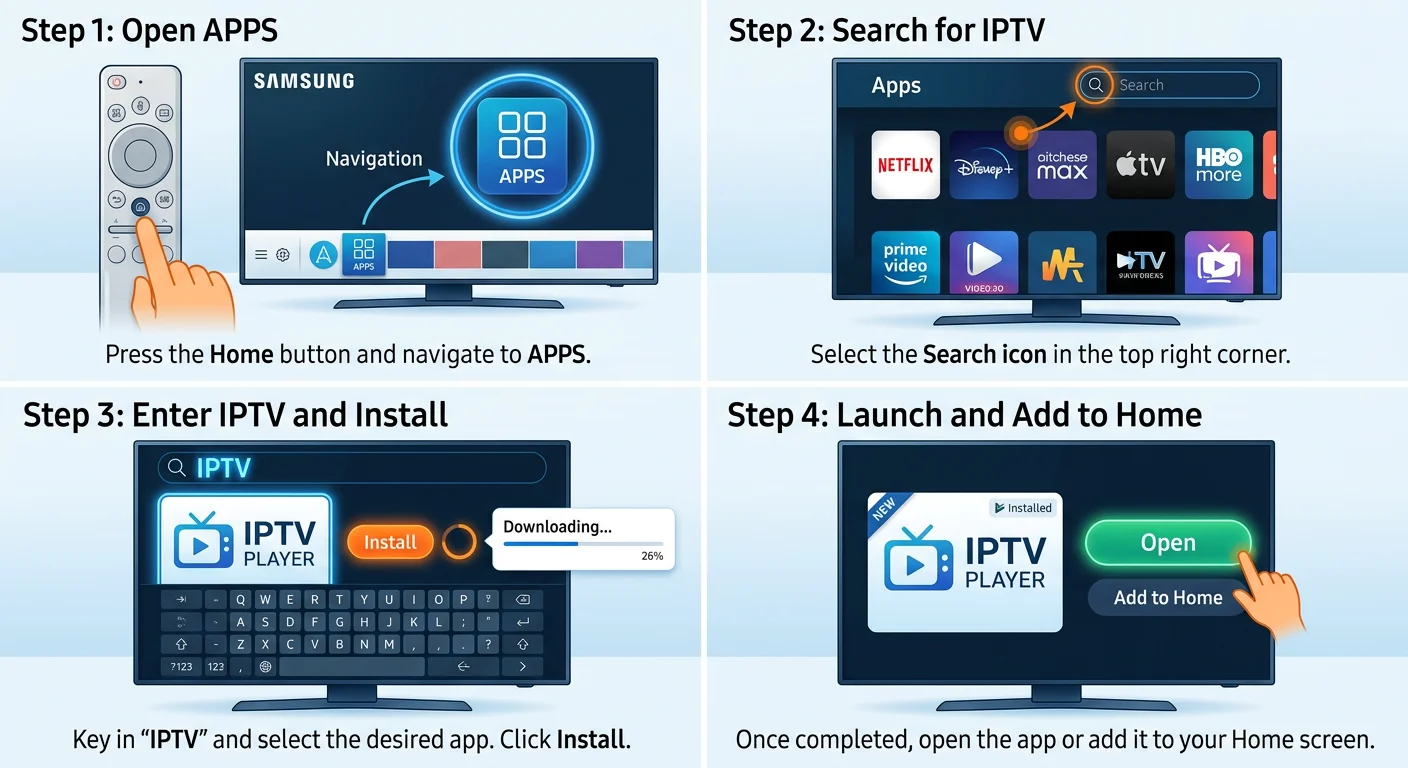
- Press the Home button on your Samsung remote and navigate to the Apps section at the bottom of the screen.
- Open the Search icon (the magnifying glass in the top-right corner of the App Store).
- Type “SS IPTV” using the on-screen keyboard and select the correct app from the results. The icon is dark with “SS IPTV” text.
- Click Install and wait for it to download. Usually takes under 30 seconds on a decent connection.
- Open SS IPTV from your apps row, or press Home and scroll down to find it in My Apps.
- On first launch, you’ll see a welcome screen. Select “Add Playlist” or navigate to Settings, then Playlists.
- Choose your input method:
- M3U URL: Paste the m3u link your provider sent you. This is usually a long URL starting with http:// or https://.
- Xtream Codes: Enter the server URL (also called host or portal address), your username, and your password. Your provider sends all three.
- Wait for the channel list to load. With 120,000+ channels, this initial load can take 30 to 90 seconds. Subsequent loads are faster.
- Browse to a live channel and press play. If it streams cleanly, you’re good to go.
Free trial tip: Royal Stream IPTV offers a 24-hour free trial so you can test everything on your specific Samsung model before committing. You get full access to over 120,000 channels, including Canadian and French-language content, during the trial. No credit card needed upfront. Reach out via WhatsApp at +44 7411 575226 or email support@royalstreamiptv.com to request your trial credentials.
Once you’ve confirmed the stream works on your Samsung, you can pick a plan that fits your budget. Royal Stream pricing in CAD:
What Channels Can You Watch?
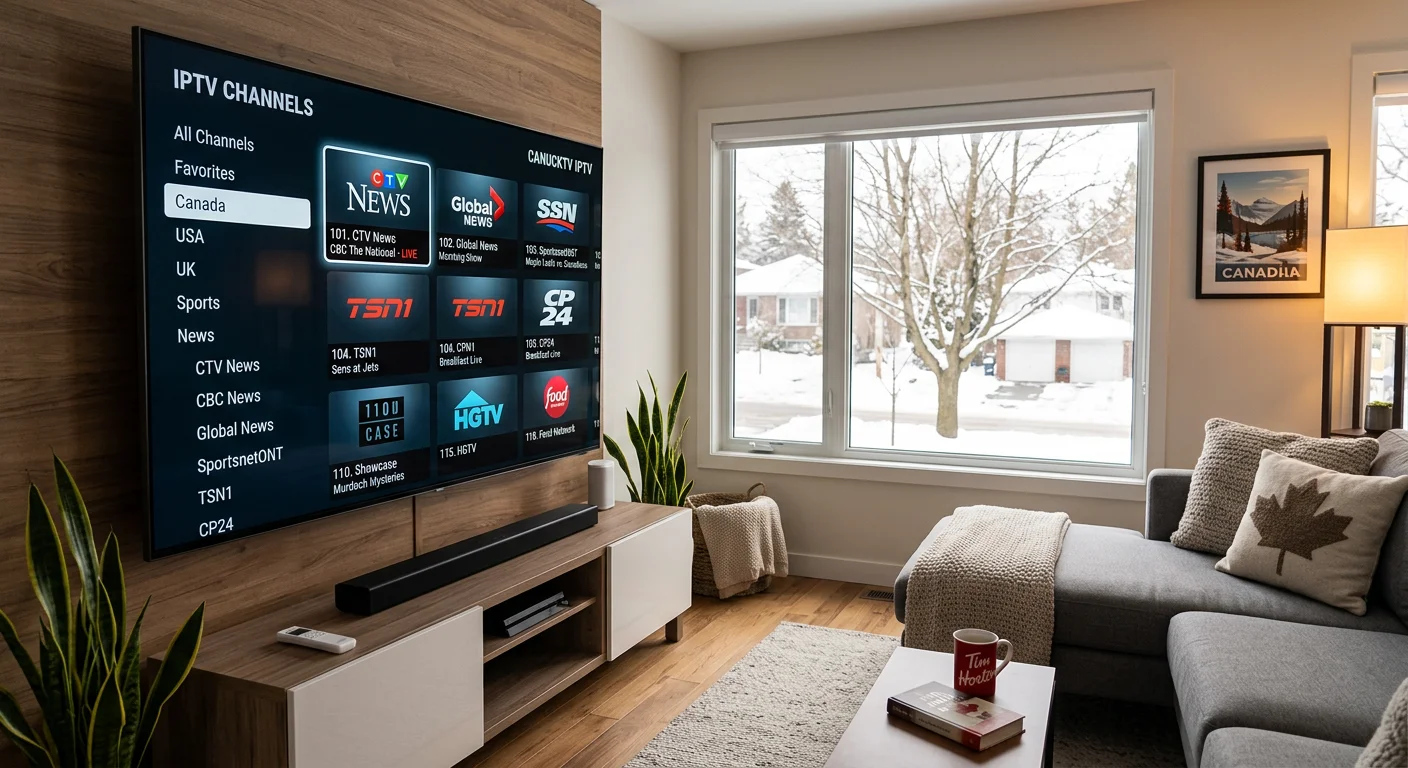
A good Canadian IPTV provider covers the full range of broadcast and sports channels you’d expect from a cable package, plus a lot more. With Royal Stream, you get access to over 120,000 live channels, including:
- Canadian broadcast: CBC, CTV, Global, City TV
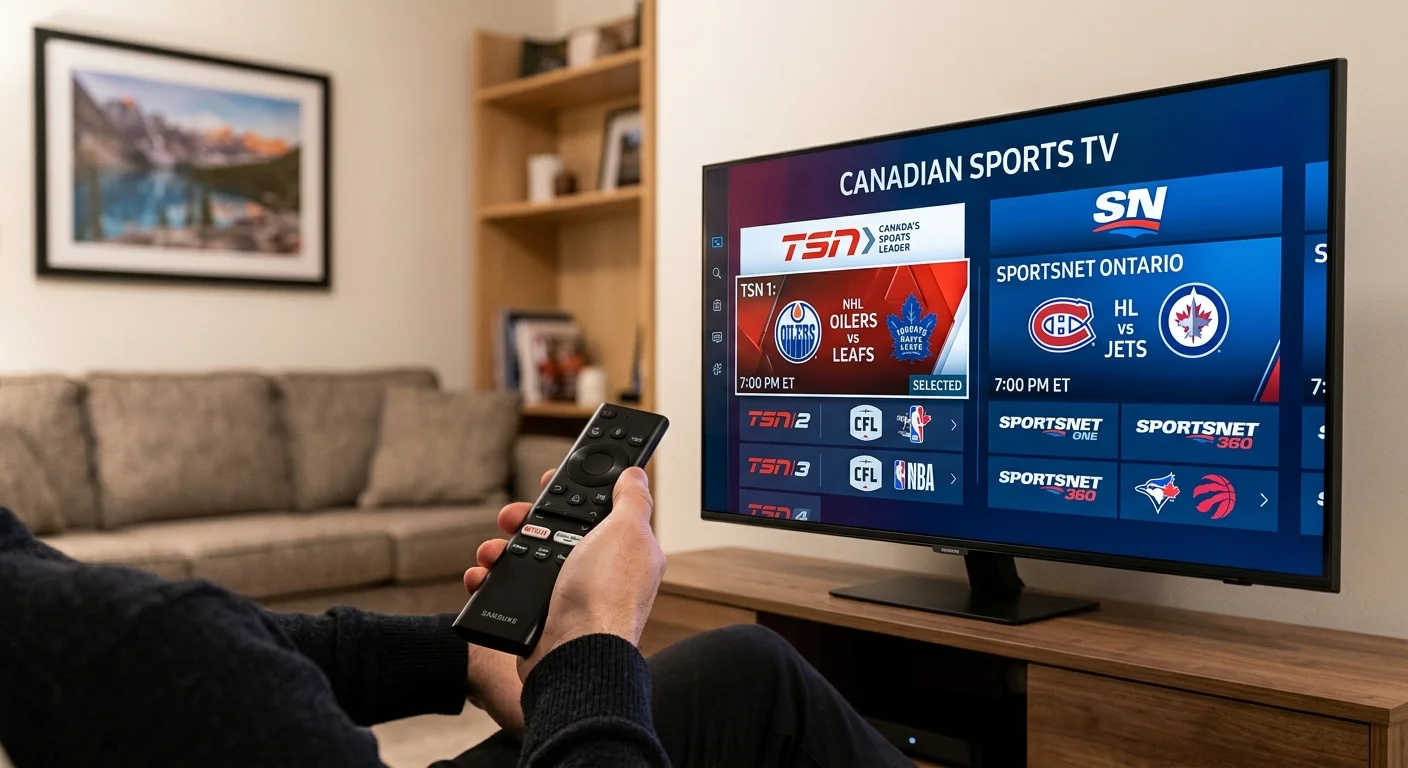
- Canadian sports: TSN (all feeds), Sportsnet (all feeds), RDS
- Major sports leagues: NHL, NFL, MLB, NBA, Premier League, Champions League
- French-language channels: TVA, V Télé, ICI Radio-Canada Télé, Noovo
- US networks: ESPN, Fox Sports, NBC Sports, ABC, CBS, NBC
- International content: Channels from the UK, France, Arabic-speaking countries, South Asia, and more
Local Canadian channels vary by market. Most major-city CBC and CTV affiliates are included. French-language content is well-covered too, which matters if you’re in Quebec or watching for a francophone household member.
For sports specifically, the combination of TSN, Sportsnet, RDS, and the major US sports networks means you get NHL games, CFL, NFL Sunday, Premier League, Champions League, and MLB all in one subscription. That alone covers most of what a typical Canadian household watches on cable.
If you want to confirm specific channels are available before subscribing, ask during your 24-hour free trial. The channel list is fully accessible during trial so you can check your specific sports, news, or international packages.
For comparison: a standard Canadian cable package covers 100 to 150 channels. IPTV gives you a much broader library, including international content that cable simply doesn’t carry.
Troubleshooting Common Samsung IPTV Issues
Most problems with IPTV on Samsung TV come down to one of four things: internet speed, app region settings, credentials, or remote navigation. Here’s how to fix each one.
Buffering or freezing during playback
IPTV needs a stable, fast connection. For SD content, 10Mbps is usually fine. For HD streams, you want at least 25Mbps dedicated to the TV. Run a speed test directly on the TV if you can (Samsung TVs have a built-in speed test under Settings, General, Network). Speeds measured on your phone or laptop don’t tell you what the TV is actually receiving. If the TV is far from your router, a wired ethernet connection makes a big difference over Wi-Fi, especially for live sports streams.
App not found in the Samsung App Store
This almost always means your TV’s country or region is set incorrectly. Go to Settings, General, System Manager, Country. Set it to Canada. After changing it, restart the TV fully and search again. Some apps also won’t appear unless a Samsung account is signed in on the TV. Sign in at Settings, General, Samsung Account.
Channels not loading or showing an error code
Double-check your m3u URL or Xtream Codes credentials. A single typo breaks the connection entirely. Copy-paste rather than typing manually if at all possible. If you’re certain the credentials are correct, the issue may be a temporary server problem on the provider’s end. Contact your IPTV provider’s support to confirm the server status. Royal Stream support is available 24/7 via WhatsApp or email.
Remote navigation feels awkward inside the app
SS IPTV and Smarters both have a virtual remote option inside the app. You can also use the Samsung SmartThings app on your phone as a touchpad controller. This makes typing credentials much easier than picking out individual letters on the TV’s on-screen keyboard. For initial setup especially, the SmartThings keyboard shortcut saves a lot of frustration.
Samsung vs Firestick for IPTV in Canada
This comparison comes up often. Here’s an honest take on both options.
Samsung Smart TV wins on convenience. If you already own a Samsung TV from 2017 onwards, you don’t need to buy anything extra. No additional box, no second remote, no HDMI port occupied. The apps install directly onto the TV and work without any extra steps. For most people, this is the path of least resistance.
Amazon Fire TV Stick has more flexibility. It supports a wider range of IPTV apps, including some that aren’t available on Tizen OS. It also supports sideloading apps, which opens up even more options beyond what’s in any official app store. Fire Sticks run from about $30 to $50 and are easy to move between TVs.
The practical reality: many Canadians use both. Samsung for the main living room TV because it’s already there and the setup is minimal. A Fire Stick for the bedroom or a secondary TV where a bit more flexibility matters. There’s no reason to pick one and exclude the other.
If you want a detailed comparison of streaming devices for IPTV in Canada, the Fire Stick IPTV guide covers that fully, including setup instructions specific to that device.
FAQ
Does Samsung Smart TV support IPTV?
Yes. Samsung TVs running Tizen OS (2017 and newer) support IPTV through third-party apps available directly in the Samsung App Store. SS IPTV, IboPlayer, and Smarters Player Lite all work on these TVs without any hardware workarounds required.
Does SS IPTV work on Samsung?
Yes. SS IPTV is available in the Samsung App Store and is one of the most commonly used IPTV apps on Samsung TVs in Canada. It supports both m3u playlist URLs and Xtream Codes credentials from any IPTV provider.
Is IPTV legal in Canada?
The legality depends on the specific service you use. Canadian regulations in this area are overseen by the CRTC. For a full breakdown of the rules and what to look for when choosing a provider, read our CRTC IPTV rules guide. Note that Royal Stream is an IPTV delivery service. We don’t claim CRTC licensing, and we recommend you review the applicable rules yourself.
How fast does my internet need to be for IPTV on Samsung TV?
At minimum, 25Mbps for reliable HD streaming on a single device. If you’re running multiple devices at the same time (phones, tablets, laptops, other TVs), budget for more headroom. A wired ethernet connection to the Samsung TV is more reliable than Wi-Fi, especially for live sports or HD content where buffering mid-game is particularly annoying.
Can I use Royal Stream IPTV on my Samsung TV?
Yes. Royal Stream works on Samsung Smart TVs (2017 and newer) through SS IPTV, IboPlayer, and Smarters Player Lite. After subscribing, you’ll receive either m3u playlist or Xtream Codes credentials to enter into the app. A 24-hour free trial is available if you want to test on your specific TV model before committing to a plan. Reach out via WhatsApp at +44 7411 575226 or email support@royalstreamiptv.com to get started.
Conclusion
Samsung Smart TVs are one of the cleanest ways to get IPTV in Canada. No extra hardware, no complicated setup. Just the App Store, two minutes of configuration, and you’re watching live Canadian channels on a screen you already own.
If you want to try it out, start with the 1-month plan at $20 or request the 24-hour free trial first to confirm everything works on your model. You can also browse our full device compatibility list or visit the pricing page to compare all plan options.

Marc Tremblay is a Canadian cord-cutting enthusiast based in Montreal. After spending years overpaying for cable, he started testing IPTV services across Canada and writing about what actually works. He covers streaming, Canadian sports broadcasting, and everything cord-cutting at Royal Stream IPTV.