Your Royal Stream IPTV subscription is active — now it’s time to get watching. This complete IPTV Canada installation guide walks you through setup on every device you own in 15 minutes or less. No technical knowledge required. Whether you’re setting up on a Fire Stick, Smart TV, iPhone, Android, or computer, the process is straightforward and fast.
This IPTV Canada installation tutorial covers every major device, explains your credentials, troubleshoots common issues, and includes a 15-minute quick start checklist so you can go from subscription to streaming as quickly as possible. Royal Stream IPTV is a legitimate Canadian IPTV service — all setup uses official app stores only, no sideloading required.
Not subscribed yet? View plans starting at $20/month CAD or claim a free 24-hour trial before committing.
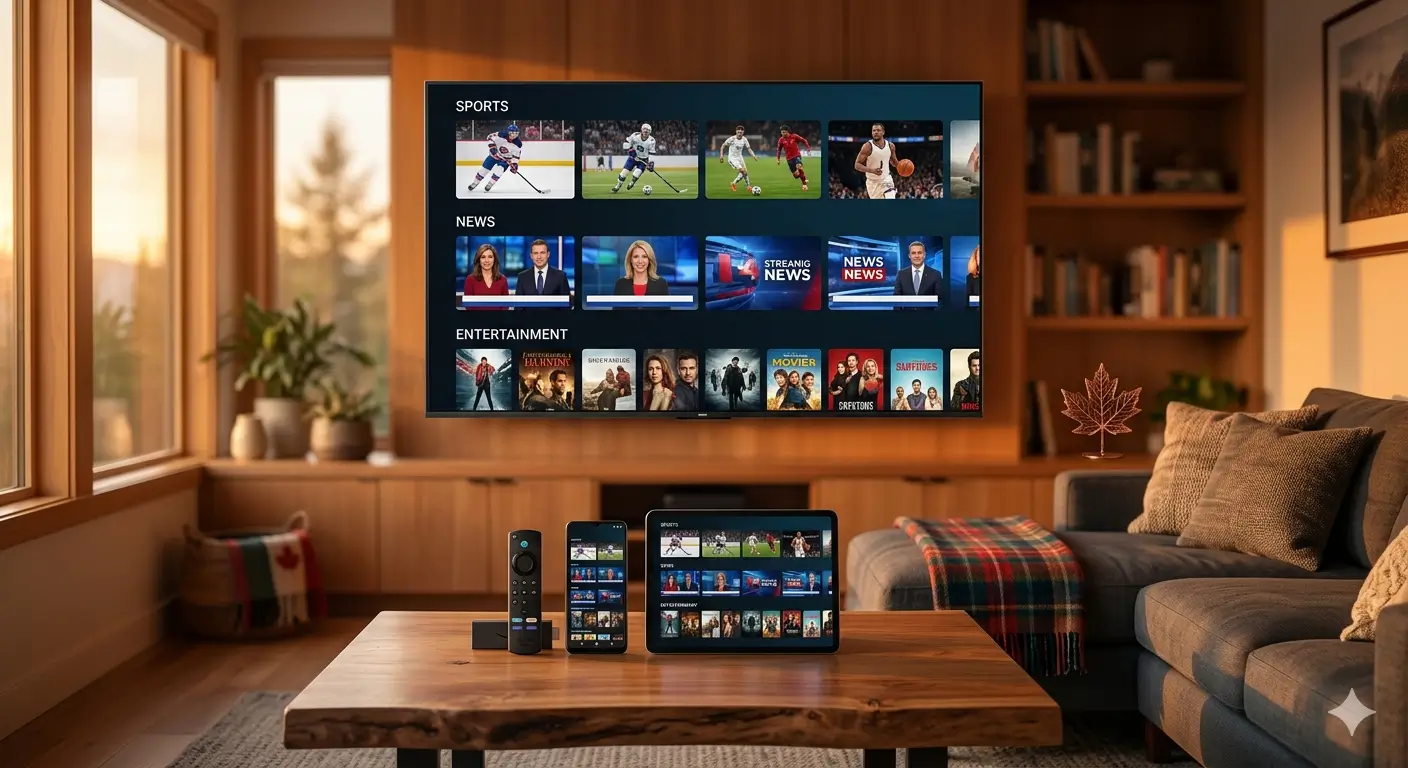
Before You Start — What You Need
Before beginning your IPTV Canada installation, make sure you have the following ready:
- Active Royal Stream IPTV subscription — get yours here from $20/month CAD
- Your login credentials — server URL, username, and password sent to your email after payment
- A compatible device — Fire Stick, Smart TV, iPhone, Android, Apple TV, MAG Box, or computer
- Internet connection — minimum 25 Mbps recommended; check yours at speedtest.net
- 15 minutes of time — that’s all a complete IPTV Canada installation takes from start to finish
Can’t find your credentials? Check your email inbox and spam folder for the Royal Stream welcome email. If you still can’t locate them, contact 24/7 support via WhatsApp and they’ll resend immediately.
Choose Your Device — Device-Specific Setup Guides
Royal Stream IPTV works on every major streaming device. Select yours below for the fastest IPTV Canada installation path — dedicated full guides are available for the most popular devices.
Amazon Fire Stick / Fire TV
The Fire Stick is one of the most popular devices for IPTV Canada installation — it’s affordable, easy to use, and supports IPTV Smarters Pro and IBO Player directly from the Amazon Appstore. Plug it into any HDMI TV and you’re ready in minutes.
Read full Fire Stick setup guide →
Smart TV (Samsung, LG, Android TV)
Smart TVs support IPTV Canada installation natively — Samsung Tizen uses Smart IPTV (SIPTV), LG webOS uses IPTV Smarters Pro, and Android TV uses TiviMate or IPTV Smarters from the Google Play Store. No extra hardware needed.
Read full Smart TV setup guide →
iPhone & Android Phones / Tablets
Mobile IPTV Canada installation takes under 5 minutes — download IBO Player (iPhone) or TiviMate (Android) from the official app store, enter your credentials, and start streaming anywhere in Canada.
Read full iPhone & Android setup guide →
Apple TV
Download IBO Player or IPTV Smarters Pro from the Apple TV App Store. Open the app, select “Add Playlist,” choose Xtream Codes login, and enter your Royal Stream server URL, username, and password. Channel list loads automatically within 60 seconds.
MAG Box
On your MAG Box, navigate to Settings → Servers → Portals. Enter your Royal Stream portal URL in Portal 1. Save settings and restart the device. Your full channel list will load on the next boot — no additional app installation needed.
Android TV Box
Open Google Play Store on your Android TV Box and install TiviMate or IPTV Smarters Pro. Follow the same Xtream Codes credential entry process as Android phones. Android TV Boxes support 4K output and are one of the best devices for a full IPTV Canada installation on your main TV.
Windows or Mac Computer
Download VLC Media Player (free, open-source) from the official VLC website. Go to Media → Open Network Stream, paste your M3U URL from Royal Stream, and click Play. Alternatively, IPTV Smarters Pro is available as a Windows app from the Microsoft Store. No browser plugins or extensions needed.
Universal Installation Steps — Works on Any Device
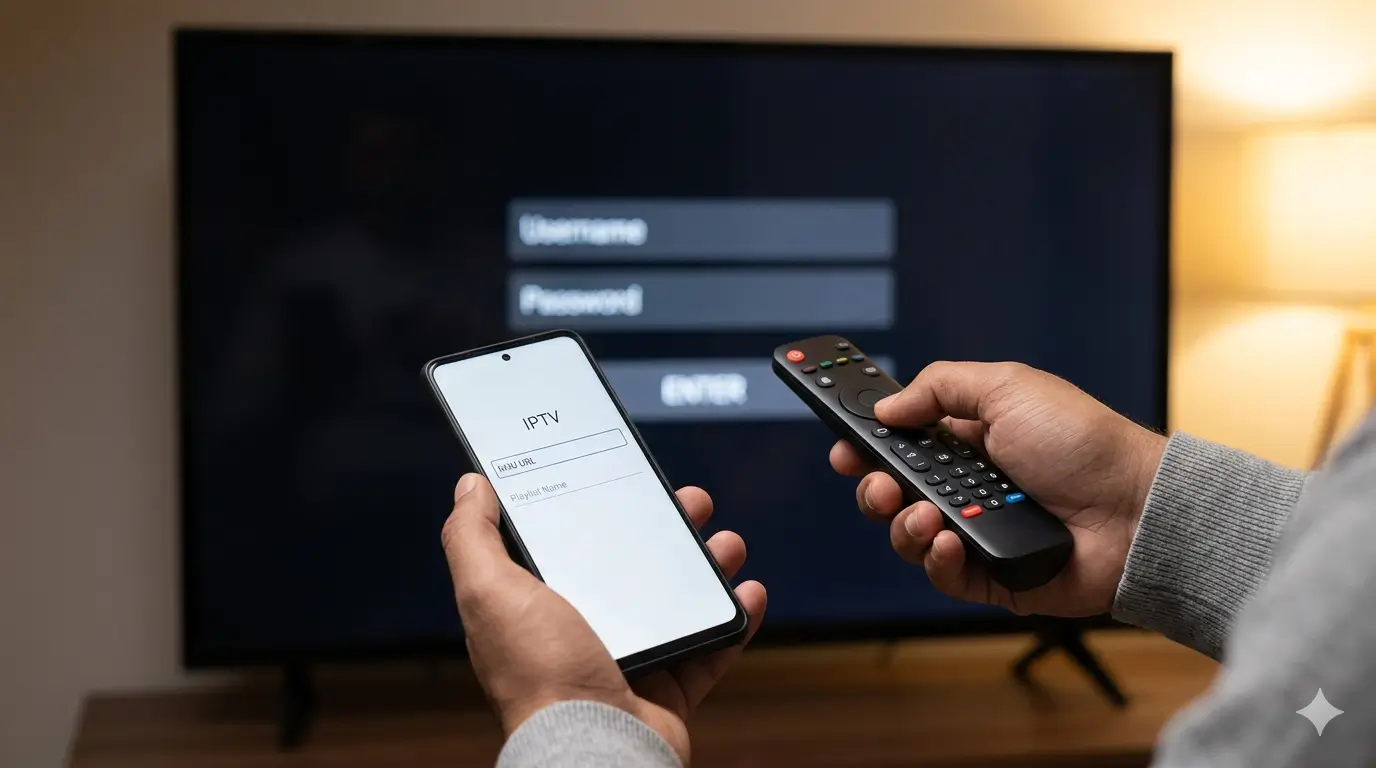
Regardless of which device you use, every IPTV Canada installation follows the same five core steps:
- Choose your IPTV app — IBO Player works on the most devices; TiviMate is best for Android; Smart IPTV for Samsung TVs
- Install the app from the official store — App Store, Google Play, Amazon Appstore, or Microsoft Store only
- Open the app and find “Add Playlist” — this option may also appear as “Add Account,” “Add Server,” or “Xtream Codes”
- Enter your Royal Stream credentials — server URL, username, and password from your welcome email
- Wait for channels to load — the full 120,000+ channel list populates automatically, typically within 30–60 seconds
That’s the complete IPTV Canada installation process. Most users are watching live TV within 10 minutes of starting.
IPTV App Comparison — Which App Is Right for You?
| App | iOS | Android | Smart TV | Fire Stick | Cost |
|---|---|---|---|---|---|
| IBO Player | ✅ | ✅ | ✅ | ✅ | One-time fee |
| IPTV Smarters Pro | ✅ | ✅ | ✅ | ✅ | Free / Paid |
| TiviMate | ❌ | ✅ | ✅ (Android TV) | ✅ | ~$9.99 USD/yr |
| GSE Smart IPTV | ✅ | ✅ | ❌ | ❌ | Free |
| Smart IPTV (SIPTV) | ❌ | ❌ | ✅ (Samsung only) | ❌ | One-time fee |
What Are Xtream Codes Credentials?
When you complete your IPTV Canada installation, the app will ask for “Xtream Codes” login details. Here’s what that means in plain English:
- Server URL — the address of the Royal Stream IPTV server (looks like a website link)
- Username — your unique account identifier assigned at signup
- Password — your account password, case-sensitive
All three are included in the welcome email Royal Stream sends immediately after your payment is confirmed. Copy them exactly — one wrong character will cause an authentication error. If you lost your credentials, contact Royal Stream support via WhatsApp and they’ll resend them within minutes. An internet connection of at least 25 Mbps is required for reliable HD streaming.
15-Minute IPTV Canada Installation Quick Start
Follow this timed checklist for the fastest possible IPTV Canada installation:
Minutes 1–3: Check your internet speed
Visit speedtest.net and run a speed test. You need at least 25 Mbps for HD and 50 Mbps for 4K. If your speed is lower, connect via ethernet cable instead of Wi-Fi before proceeding.
Minutes 4–6: Install your IPTV app
Based on your device, go to the appropriate official store — Apple App Store for iPhone/iPad/Apple TV, or Google Play Store for Android — and download your chosen app from the comparison table above.
Minutes 7–10: Configure the app
Open the app, navigate to “Add Playlist” or “Add Account,” select Xtream Codes login, and enter your Royal Stream server URL, username, and password. Tap confirm and wait for the channel list to load.
Minutes 11–13: Test playback
Find a Canadian channel — TSN, CBC, or RDS — and tap to play. Verify video and audio are working. Try switching to an international channel to confirm the full list is loaded.
Minutes 14–15: Set up favourites
Mark your most-watched channels as favourites for instant access. Create a custom category if your app supports it. Your IPTV Canada installation is complete.
Common Installation Issues and Fixes
“Authentication Failed” Error
This is the most common IPTV Canada installation issue. Double-check that your username, password, and server URL are entered exactly as received — no extra spaces, correct capitalization. Verify your subscription is active. If credentials are correct and the error persists, contact Royal Stream support via WhatsApp immediately.
Slow Channel Loading
Run a speed test at speedtest.net. If speed is below 25 Mbps, switch from Wi-Fi to ethernet. Restart your router and try again. Slow loading on first launch is normal — the app is downloading the full channel list and EPG data.
App Won’t Install
Check your device’s available storage — IPTV apps require at least 200MB free. Verify your device meets the minimum OS requirements (iOS 14+, Android 8.0+). Only install from official stores — third-party APK sources are not supported.
Buffering or Freezing
Buffering during IPTV Canada installation testing usually indicates a speed or network issue. Close all other streaming apps, connect via ethernet if possible, and switch to a lower quality setting temporarily. If buffering continues on Wi-Fi but not ethernet, your router may need a firmware update.
No Sound
Check your device volume and confirm the mute toggle is off. Some apps have a separate in-app volume control — check that too. If only certain channels have no audio, it’s a channel-specific issue — try a different channel and contact support if it affects all channels.
EPG Guide Not Loading
EPG data can take up to 24 hours to fully populate on first-time IPTV Canada installation. Check your internet connection, restart the app, and try again the following day if the guide is still empty on first launch.
Canadian ISP-Specific Setup Tips
Bell Fibe Users
Royal Stream IPTV works perfectly over Bell Fibe internet — no special configuration needed. Use the 5 GHz Wi-Fi band for best wireless performance, or connect via ethernet for 4K streaming stability.
Rogers Ignite Users
No conflicts between Rogers Ignite internet and IPTV Canada installation. Rogers’ CGNAT network configuration is fully compatible. Ethernet is recommended for 4K content.
Videotron Users (Quebec)
Videotron internet works seamlessly with Royal Stream IPTV. French-language channels — TVA, RDS, Radio-Canada, Noovo — are all included and accessible from day one. Ethernet connection recommended for stable HD/4K streams.
Starlink / Rural Users
Royal Stream IPTV works on Starlink — download your EPG guide during off-peak hours (late night) for best performance. Starlink’s latency is acceptable for IPTV streaming, though weather conditions may occasionally cause brief interruptions.
Multi-Device Households
Each Royal Stream subscription covers one active stream at a time. For households that need simultaneous streams on multiple TVs, contact support via WhatsApp about additional connection options.
Test Your IPTV Setup — Pre-Flight Checklist

Before declaring your IPTV Canada installation complete, run through this checklist:
- ☐ Canadian sports channel loads (TSN, Sportsnet, or RDS)
- ☐ Local news channel works (CBC, CTV, or Global)
- ☐ French channel accessible (TVA or Radio-Canada)
- ☐ International channel loads (if applicable)
- ☐ VOD / on-demand section opens and shows titles
- ☐ EPG / channel guide displays program schedule
- ☐ Audio is clear on all tested channels
- ☐ HD quality visible (1080p or better)
- ☐ App controls — pause, rewind, fast forward — work
If all items are checked, your IPTV Canada installation is complete. You now have access to 120,000+ channels across Canadian sports, news, French networks, international content, and an 80,000+ title VOD library. See the full IPTV Canada channels list for everything available.
Maintaining Your IPTV Installation
A healthy IPTV Canada installation stays reliable with minimal maintenance:
- Restart your device weekly — clears memory and refreshes the connection to Royal Stream servers
- Keep your app updated — update from the official store whenever a new version is available
- Clear app cache monthly — on Android, go to Settings → Apps → [IPTV App] → Clear Cache
- Update your playlist when prompted — Royal Stream occasionally refreshes server URLs; support will notify you if needed
- Check subscription status monthly — log into your account or contact support to confirm your renewal date
IPTV Canada Service by Province
Royal Stream IPTV is available for IPTV Canada installation across every province — same price, same channel lineup, no regional restrictions.
- IPTV Ontario — Toronto, Ottawa, Hamilton, and beyond
- IPTV Quebec — Montreal, Quebec City, Laval, and beyond
- IPTV British Columbia — Vancouver, Victoria, Surrey, and beyond
- IPTV Alberta — Calgary, Edmonton, Red Deer, and beyond
Frequently Asked Questions — IPTV Canada Installation
How long does IPTV installation take?
A complete IPTV Canada installation takes 10–15 minutes from start to first channel playing. Most users are watching live TV within 10 minutes of receiving their credentials.
Do I need technical knowledge to set up IPTV?
No. The IPTV Canada installation process is designed for beginners — if you can download an app and type in a username and password, you can complete the setup without any technical background.
Can I install IPTV without Wi-Fi?
Yes. IPTV works over any internet connection — Wi-Fi, ethernet, or mobile data (4G/5G). Ethernet provides the most stable connection for HD and 4K content. A minimum of 25 Mbps is required regardless of connection type.
What’s the best IPTV app for beginners in Canada?
IBO Player is the easiest app for first-time IPTV Canada installation — clean interface, straightforward credential entry, and works on iPhone, Android, Fire Stick, and Smart TVs. IPTV Smarters Pro is a strong second choice.
Can I install IPTV on multiple devices?
Yes — you can install the app on as many devices as you own. Each Royal Stream subscription allows one active stream at a time. Contact support for multi-connection options if you need simultaneous streams.
Do I need a VPN for IPTV in Canada?
No VPN is required for IPTV Canada installation or use with Royal Stream IPTV. Your credentials work directly on Canadian internet connections from all major ISPs.
Why is my IPTV slow after installation?
Slow performance after IPTV Canada installation is almost always a speed or network issue. Run a speed test, switch to ethernet, and close other bandwidth-heavy apps. Contact support if the issue persists after these steps.
Can I uninstall and reinstall IPTV?
Yes. Uninstalling the app does not affect your Royal Stream subscription. Reinstall from the official store anytime and re-enter your credentials to restore full access.
What internet speed do I need for IPTV?
Minimum 10 Mbps for SD, 25 Mbps for HD, and 50 Mbps for 4K streaming. For households with multiple devices on the same network, 100 Mbps is recommended for a reliable IPTV Canada installation.
Can I install IPTV on older Smart TVs?
It depends on the TV’s operating system version. Samsung TVs from 2016+ and LG TVs from 2017+ generally support IPTV apps. Older models may require an external device like a Fire Stick or Android TV Box connected via HDMI.
Will IPTV work with Canadian ISPs like Bell and Rogers?
Yes. Royal Stream IPTV is fully compatible with Bell Fibe, Rogers Ignite, Telus, Videotron, Freedom Mobile, and all other Canadian internet providers. No special configuration or ISP permission is required.
What if I can’t complete the installation myself?
Royal Stream IPTV offers 24/7 Canadian customer support via WhatsApp. If you hit any issue during your IPTV Canada installation, contact support and a team member will walk you through the process in real time — no wait times, no scripts.
Royal Stream IPTV — Canada’s Most Trusted IPTV Service
Starting at $20/mo · 120,000+ channels · 15-minute setup · 24/7 Canadian support · No contracts

Marc Tremblay is a Canadian cord-cutting enthusiast based in Montreal. After spending years overpaying for cable, he started testing IPTV services across Canada and writing about what actually works. He covers streaming, Canadian sports broadcasting, and everything cord-cutting at Royal Stream IPTV.